Multi-factor Authentication
From OpenEMR Project Wiki
Overview
- OpenEMR supports multi-factor authentication. Both TOTP and U2F are supported.
- Use case:
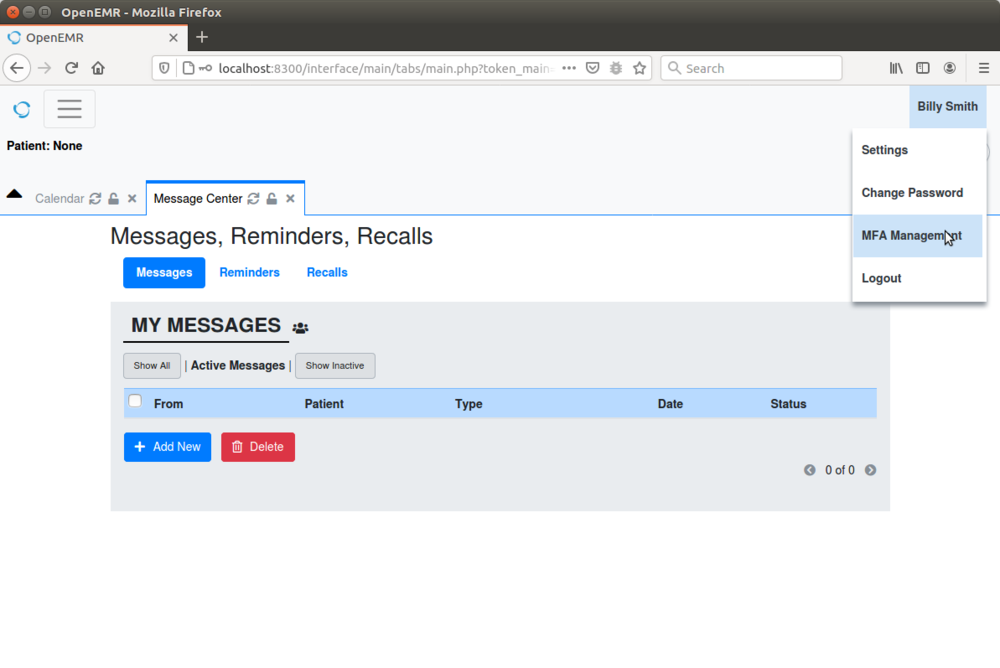
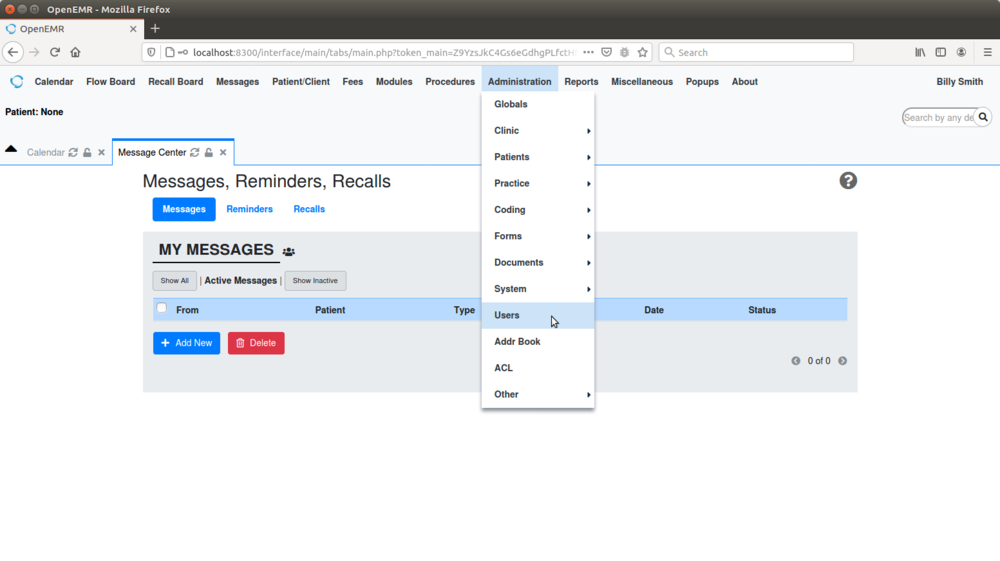
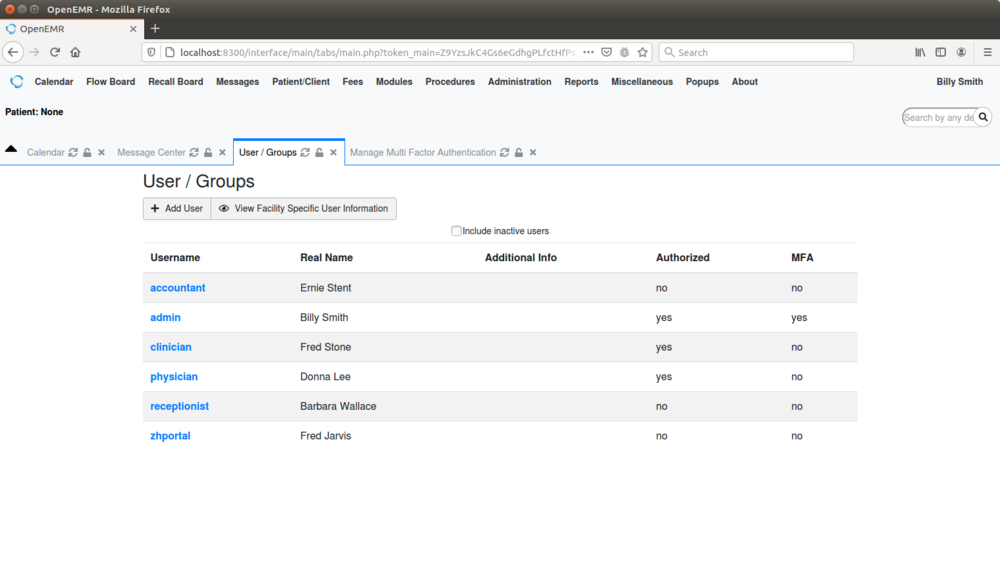
- User can set up multi-factor authentication at user menu->MFA Management (and then follow on screen instructions). When a user (that has configured multi-factor authentication) logins to OpenEMR, user will be required to pass multi-factor authentication. Administrator can see which users are using multi-factor authentication at top menu->Administration->Users (The MFA column in the table shown states 'yes' if the specified user is using multi-factor authentication).
Configure
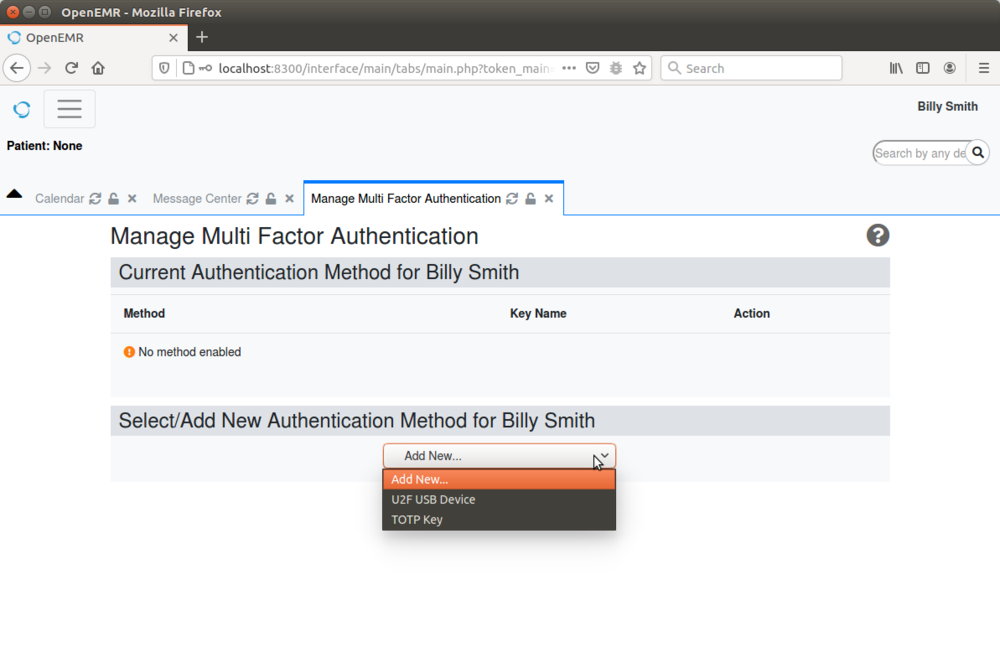
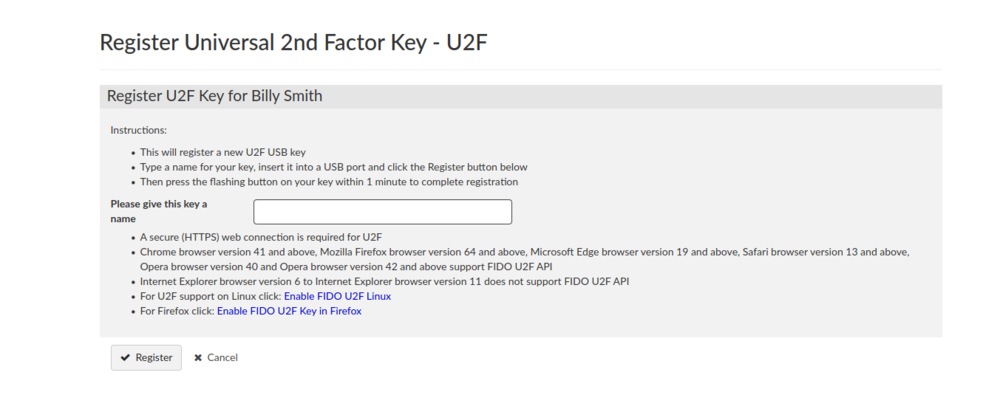
- User can set up multi-factor authentication at user menu->MFA Management (and then follow on screen instructions):

Use
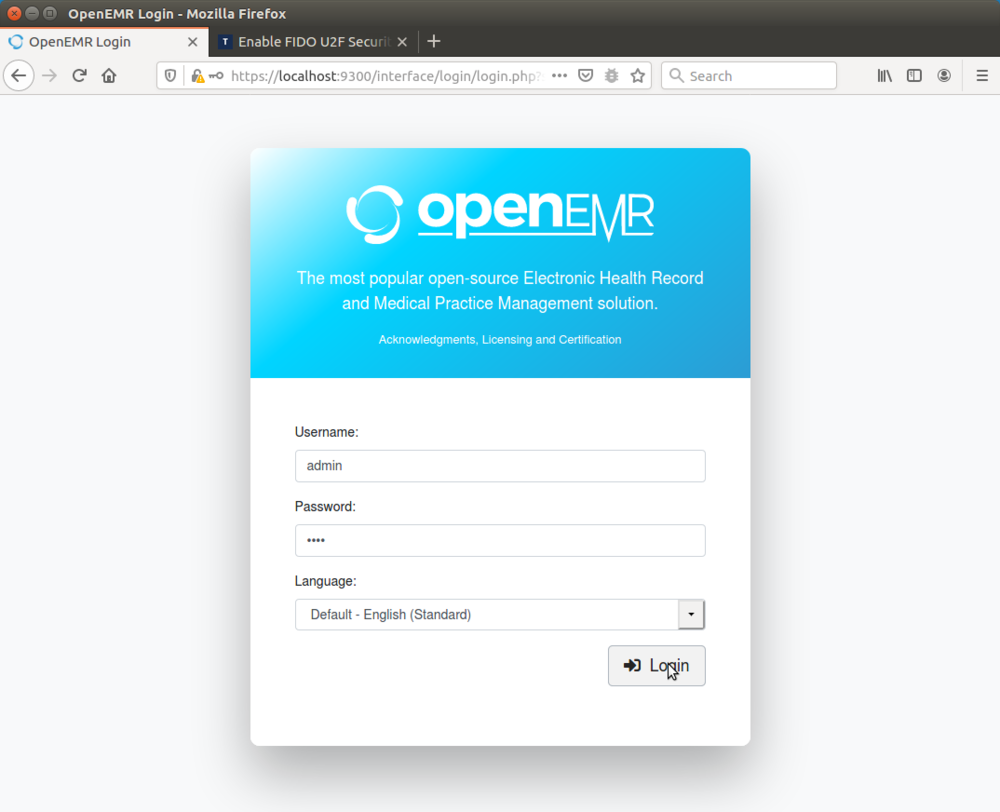
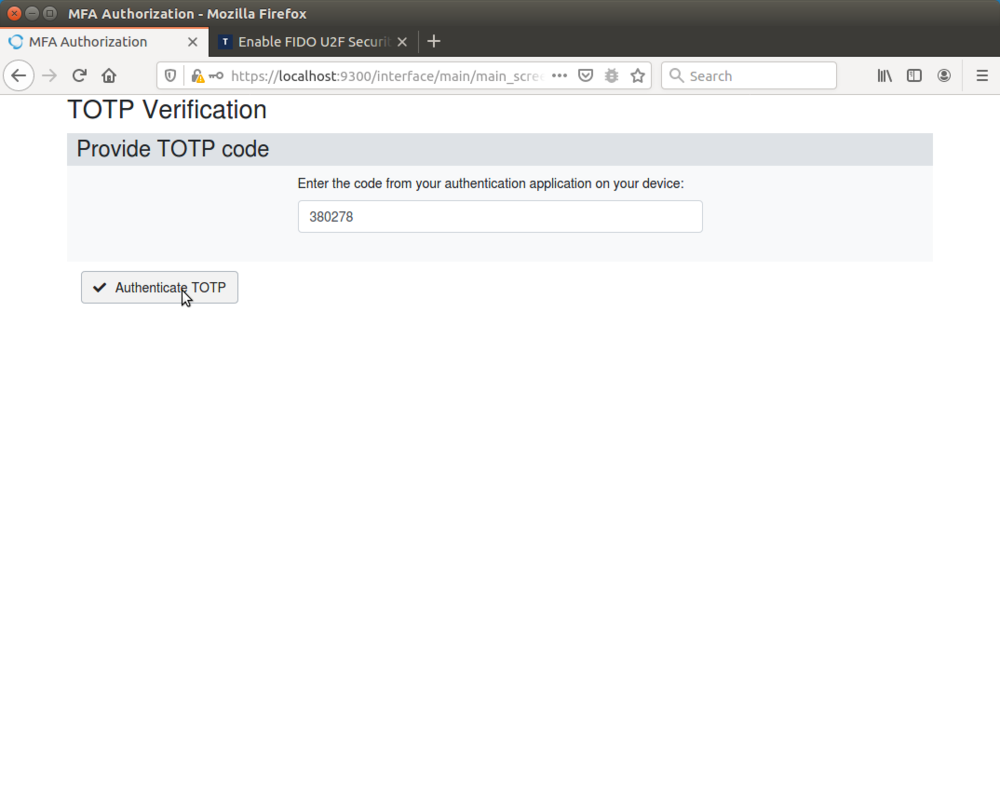
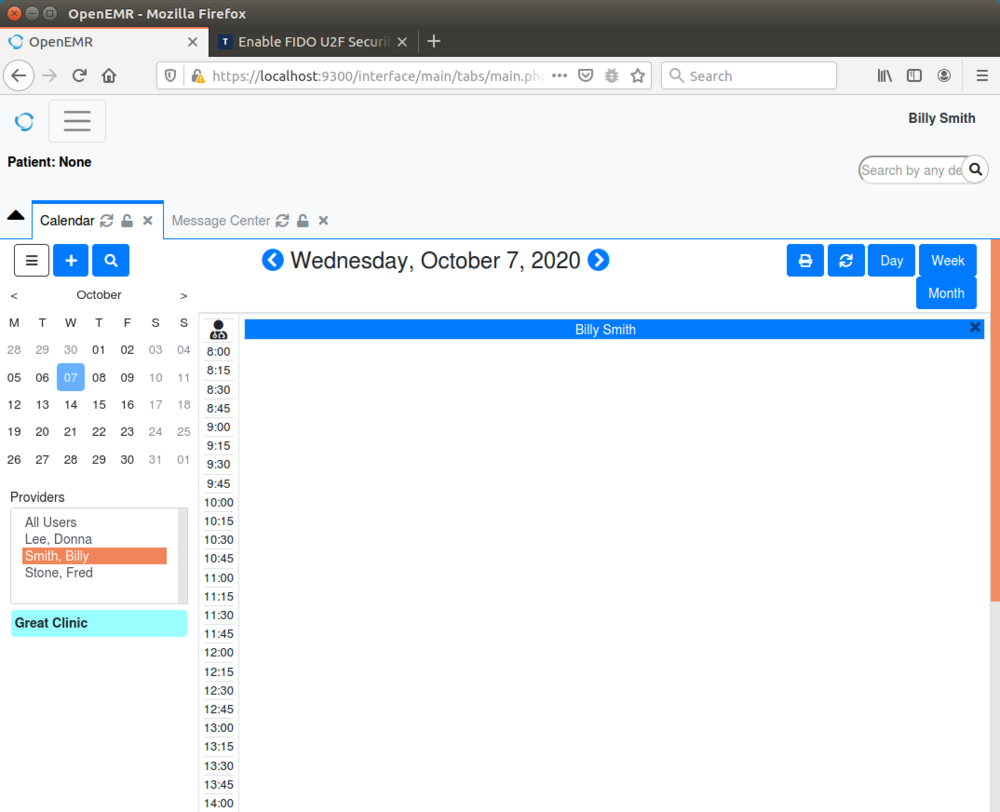
- When a user (that has configured multi-factor authentication) logins to OpenEMR, user will be required to pass multi-factor authentication:
Audit
- Administrator can see which users are using multi-factor authentication at top menu->Administration->Users (The MFA column in the table shown states 'yes' if the specified user is using multi-factor authentication).
Canceling a user's MFA
If a user loses access to their authenticator app or security key, an administrator can clear their multi-factor authentication so they can log in with just their password and set up MFA again.
- Go to Admin → Users.
- Click the Username of the user whose MFA you want to clear.
- Tick the Clear 2FA checkbox.
- Enter your own password in the *Your Password* field (this confirms the change; it is not the user's password).
- Click Save.

The user can now log in without MFA. Ask them to re-enroll from User menu → MFA Management as soon as possible.

